Integration process
Hello! This is documentation for production environment.
- Overview
- Integration Credentials
- Integration Process
- Retrieve FPF URL
- Get Available Payment Methods
- Confirmation Callback for Remits
- Get Status Transaction
- Transaction Status Callback
- How to make a Refund
- Get Merchant Account Balance via API
- Get Transaction History (CSV)
Overview
This document provides a detailed guide on using APS pre-built UI solution for payments. It outlines the interaction between parties for processing deposit and remit payments.
Participants:
- Customer - The end user who makes a deposit or receives a payment (remit) from the merchant
- Merchant - Your company
- FPF - Fast-Payment-Flow checkout UI
- FPF-Backend - The APS backend system
There are two available transaction flows:
- Deposit Flow – The process where customers make payments to the merchant.
- Remit Flow – The process where the merchant remits funds to the customer.
In this guide, the terms remit and payout are used interchangeably to refer to transactions where funds are transferred from the merchant to the customer.
Integration Credentials
During the onboarding process, you should setup credentials to access the APS API for both staging and production environments. APS API uses ES-256 public key and a digital signature based on the URL, HTTP method, request payload and timestamp.
Setting up signed requests
This is a step-by-step walkthrough. You don't need any special background in cryptography to follow it — just copy the commands and code as shown.
Step 1 — Generate your key pair
You'll create two files on your own machine: a private key (which you keep secret, forever, and never send to us) and a public key (which you upload to us — it's not secret).
Pick the tab that matches what you have available:
bash / zsh (macOS, Linux)
If you have openssl installed (it comes pre-installed on macOS and virtually every Linux distribution), run:
openssl ecparam -name prime256v1 -genkey -noout -out private.pem
openssl ec -in private.pem -pubout -out public.pem
These two commands work identically whether your shell is bash or zsh (macOS's default shell since Catalina) — no changes needed either way.
PowerShell (Windows)
If you have openssl available (e.g. installed via Git for Windows, which bundles it), the exact same two commands work in PowerShell as-is:
openssl ecparam -name prime256v1 -genkey -noout -out private.pem
openssl ec -in private.pem -pubout -out public.pem
If you don't have openssl and don't want to install it, PowerShell 7+ (with .NET 5 or later) can generate the same kind of key pair on its own:
$ecdsa = [System.Security.Cryptography.ECDsa]::Create([System.Security.Cryptography.ECCurve+NamedCurves]::nistP256)

$privatePem = $ecdsa.ExportECPrivateKeyPem()
$publicPem  = $ecdsa.ExportSubjectPublicKeyInfoPem()

Set-Content -Path "private.pem" -Value $privatePem -NoNewline
Set-Content -Path "public.pem"  -Value $publicPem  -NoNewline
(nistP256 is the same curve as prime256v1 / secp256r1 — just Microsoft's naming for it.)
Either way, you end up with two files:
private.pem— starts with-----BEGIN EC PRIVATE KEY-----. Keep this file safe. Treat it like a password — don't email it, don't commit it to a public repository, don't send it to our support team. Only your server needs it.public.pem— starts with-----BEGIN PUBLIC KEY-----. This one is safe to share — you'll upload it to us in the next step.
What is
prime256v1? It's the name of a specific, widely-supported elliptic curve (also called P-256 or secp256r1). This is the curve our system expects — using a different one won't work.
Step 2 — Add your public key to your merchant dashboard
Sign in to your merchant dashboard with an account that has the Admin role, then add your public key under Settings → API Keys.
📖 Detailed walkthrough with screenshots →
Once your key is added, the dashboard will show you a matching APP-TOKEN — this is your account identifier, and you'll send it with every request (in the X-App-Token header) so we know which public key to check your signature against.
Note: each public key you add gets its own unique APP-TOKEN. If you add a second key later (for example, for a different environment or a key rotation), it will get a different APP-TOKEN — keep the right private key paired with the right APP-TOKEN in your code.
Step 3 — Build the string you're going to sign
Before signing anything, you first build a single string by joining four pieces of information together, in this exact order, with nothing in between them (no spaces, no separators):
SIGNED_DATA = TIMESTAMP + HTTP_METHOD + URL + REQUEST_BODY
- TIMESTAMP — the current time, in RFC-3339 format (e.g.
2026-09-26T10:00:00Z). You'll send this exact same string in theX-Sign-Timestampheader. - HTTP_METHOD — the HTTP method of your request, in UPPERCASE (
GET,POST, etc.) - URL — the full request URL: scheme, domain, path, and query string all together (e.g.
https://fpf-api.proc-gw.com/api/v3/61c21492-fd83-4180-adf6-8b0f4e0423bc/transactions). See "URL rules" right below — this is the piece people most often get wrong. - REQUEST_BODY — the exact raw bytes of your request body, byte-for-byte identical to what you actually send. If your request has no body (like a GET request), use an empty string here — don't put anything in its place. If it does have a body, sign the exact bytes your HTTP client puts on the wire — don't re-serialize, re-indent, or "pretty-print" the JSON after you've computed the signature, or the bytes won't match what the server receives and verification will fail.
Example. Say you're creating a transaction with this request:
curl --location 'https://fpf-api.proc-gw.com/api/v3/61c21492-fd83-4180-adf6-8b0f4e0423bc/transactions' \
--header 'Content-Type: application/json' \
--header 'X-App-Token: {APP_TOKEN}' \
--header 'X-Sign-Timestamp: {TIMESTAMP}' \
--header 'X-Signature: {SIGNATURE}' \
--data-raw '{"amount":100.2,"fields":{"transaction":{"deposit_method":"06d34870-a9d3-4baa-afce-995c1f385d1d:81180240-65f1-4ed0-9f1f-be1e0b4fa985"}}}'
With:
- Timestamp:
2026-09-26T10:00:00Z - Method:
POST - URL:
https://fpf-api.proc-gw.com/api/v3/61c21492-fd83-4180-adf6-8b0f4e0423bc/transactions - Body (exactly as sent, no extra whitespace):
{"amount":100.2,"fields":{"transaction":{"deposit_method":"06d34870-a9d3-4baa-afce-995c1f385d1d:81180240-65f1-4ed0-9f1f-be1e0b4fa985"}}}
Then the string you sign is exactly:
2026-09-26T10:00:00ZPOSThttps://fpf-api.proc-gw.com/api/v3/61c21492-fd83-4180-adf6-8b0f4e0423bc/transactions{"amount":100.2,"fields":{"transaction":{"deposit_method":"06d34870-a9d3-4baa-afce-995c1f385d1d:81180240-65f1-4ed0-9f1f-be1e0b4fa985"}}}
(That's the timestamp, immediately followed by POST, immediately followed by the URL, immediately followed by the JSON body — all glued together with nothing in between.)
URL rules
Our server rebuilds the URL from your request and compares it to what you signed, character by character. So the URL in your signed string must follow these rules:
- Always start with
https://, even if you're testing through a proxy or tool that shows something else. - Use the host you're calling, in lowercase (e.g.
fpf-api.proc-gw.com, notFPF-API.PROC-GW.COM). - Path must be exactly what you send on the wire. Don't re-encode it, don't add or remove a trailing slash after you've signed.
- Query parameters must be sorted alphabetically and lowercase — see "Sort and lower-case your query parameters" right below. This is required, not optional.
- Don't re-encode already-encoded characters, and keep the same letter case in percent-escapes (e.g.
%3A) that your HTTP client actually sends. Re-encoding a value that contains a colon, slash, or other special character — or changing%3Ato%3a— produces a different byte string than what goes out on the wire, and the signature won't match. - Anything after
#is never sent to the server, so leave it out. - Pass each parameter only once. Names that differ only in case (
Idandid) count as the same name. To pass a list of values, use a single parameter in the format documented for it, e.g.payment_methods=card,crypto. Repeated keys (ids=1&ids=2,ids[]=1&ids[]=2) are not supported. - Pass every parameter as
name=value, even when the value is empty:flag=. A parameter without=is not supported. - Separate parameters with
&only. Empty pairs are not allowed: no&&, and no&at the start or end. - If there are no parameters, don't add
?to the URL.
Example with a query string — fetching the payment methods available for a deposit method pair (GET, no body):
curl --location 'https://fpf-api.proc-gw.com/api/v3/61c21492-fd83-4180-adf6-8b0f4e0423bc/info?payment_methods=1d21c7e3-de57-47e2-9ccc-31c5e16dea04%3A492e48b4-7d5a-4a0c-af2f-0699f75d996b' \
--header 'X-App-Token: {APP_TOKEN}' \
--header 'X-Sign-Timestamp: {TIMESTAMP}' \
--header 'X-Signature: {SIGNATURE}' \
--header 'Content-Type: application/json'
The string you'd sign for this request is:
2026-09-26T10:00:00ZGEThttps://fpf-api.proc-gw.com/api/v3/61c21492-fd83-4180-adf6-8b0f4e0423bc/info?payment_methods=1d21c7e3-de57-47e2-9ccc-31c5e16dea04%3A492e48b4-7d5a-4a0c-af2f-0699f75d996b
(There's nothing at the end because a GET request has no body. Note the %3A in the query string — that's a URL-encoded colon, specified payment method setting ID in the payment_methods value. It's kept exactly as-is, uppercase hex and all — see rule 5 above.)
This particular example doesn't actually change under the sort/lower-case rule — there's only one parameter (nothing to sort), and every letter in its value is already lowercase hex (the GUIDs). The only "uppercase-looking" part is the
%3Aescape, and that one is explicitly left alone per rule 5. If you only ever call endpoints with a single, already-lowercase parameter, you may never see this rule actually change anything — but implement it anyway, since other endpoints or future parameters may not be as tidy.
Sort and lower-case your query parameters (required)
If your request has a query string with more than one parameter, you must:
- Sort the parameters alphabetically by name.
- Lower-case every parameter name. Parameter values are left exactly as sent — don't lower-case them.
Do this to the URL you actually send, not just to the string you sign — the two need to be identical, since our server checks your signature against the exact URL your request arrives with.
Example:
Before: ?Foo=Bar&AAA=Test
After:  ?aaa=Test&foo=Bar
(Notice Test and Bar keep their original capitalization — only the parameter names aaa and foo changed.)
Note on percent-encoded characters (like the
%3Ain the real example above): lower-casing applies to the parameter name, not to the hex digits inside a%XXescape sequence that might appear within it — don't turn%3Ainto%3a. In practice you don't need to handle this by hand: the normalization helpers below (and virtually every standard URL-encoding function, in any language) always emit percent-escapes with uppercase hex digits, so this falls out automatically as long as you encode your query string the normal way, once, and don't hand-edit it afterwards.
Why this is required: some HTTP libraries — this shows up especially often in PHP — don't guarantee a consistent order (or even consistent casing) for query parameters when you build a request from an associative array. Two requests that look identical in your code can end up sent slightly differently "on the wire." Sorting and lower-casing removes that uncertainty completely: no matter what your library does internally, you always land on the same, single correct string.
Here's how to do this normalization in a few common languages:
Python
def normalize_query(raw_query: str) -> str:
    pairs = []
    for pair in raw_query.split("&"):
        if pair:
            key, _, value = pair.partition("=")
            pairs.append((key, value))
    # Only the parameter name is lower-cased; the value is left as-is.
    normalized = sorted((key.lower(), value) for key, value in pairs)
    return "&".join(f"{key}={value}" for key, value in normalized)
Go
// Requires Go 1.23+ (for the iterator-based maps.Keys).
func NormalizeQuery(rawQuery string) string {
    normalized := url.Values{}
    for _, pair := range strings.Split(rawQuery, "&") {
        if pair == "" {
            continue
        }
        key, value, _ := strings.Cut(pair, "=")
        lowerKey := strings.ToLower(key)
        normalized.Add(lowerKey, value) // value left as-is
    }

    pairs := make([]string, 0, len(normalized))
    for _, key := range slices.Sorted(maps.Keys(normalized)) {
        for _, v := range normalized[key] {
            pairs = append(pairs, key+"="+v)
        }
    }
    return strings.Join(pairs, "&")
}
C#
public static string NormalizeQuery(string rawQuery)
{
    var pairs = rawQuery.TrimStart('?')
        .Split('&', StringSplitOptions.RemoveEmptyEntries)
        .Select(p =>
        {
            var idx = p.IndexOf('=');
            var key = idx >= 0 ? p[..idx] : p;
            var value = idx >= 0 ? p[(idx + 1)..] : "";
            return (Key: key.ToLowerInvariant(), Value: value); // value left as-is
        })
        .OrderBy(p => p.Key, StringComparer.Ordinal)
        .ThenBy(p => p.Value, StringComparer.Ordinal);

    return string.Join("&", pairs.Select(p => $"{p.Key}={p.Value}"));
}
PHP
This is the fix for the exact problem this rule exists for: ksort() after lower-casing gives you a deterministic order no matter how your original array was built.
function normalizeQuery(string $rawQuery): string
{
    $params = [];
    foreach (explode('&', $rawQuery) as $pair) {
        if ($pair === '') {
            continue;
        }
        [$key, $value] = array_pad(explode('=', $pair, 2), 2, '');
        $params[$key] = $value;
    }

    $normalized = [];
    foreach ($params as $key => $value) {
        // Only the key is lower-cased; the value is left as-is.
        $normalized[strtolower((string) $key)] = $value;
    }

    ksort($normalized, SORT_STRING);

    $pairs = [];
    foreach ($normalized as $key => $value) {
        $pairs[] = $key . '=' . $value;
    }

    return implode('&', $pairs);
}
Step 4 — Sign it
Now sign that string with your private key, using SHA-256 as the hash and ES256 (ECDSA over curve P-256) as the signature algorithm. Encode the result in Base64 — that final value is what goes in the X-Signature header.
Here's how to do that in a few common languages:
Python
Requires the cryptography package: pip install cryptography
import base64
from cryptography.hazmat.primitives import hashes, serialization
from cryptography.hazmat.primitives.asymmetric import ec

def sign(sign_timestamp: str, http_method: str, url: str, req_body: bytes, private_key_pem: bytes) -> str:
    private_key = serialization.load_pem_private_key(private_key_pem, password=None)
    signed_data = sign_timestamp.encode() + http_method.encode() + url.encode() + req_body
    signature = private_key.sign(signed_data, ec.ECDSA(hashes.SHA256()))
    return base64.b64encode(signature).decode()
Go
func Sign(signTimestamp, httpMethod, url string, reqBody, privateKeyPEM []byte) (string, error) {
    block, _ := pem.Decode(privateKeyPEM)
    privateKey, err := x509.ParseECPrivateKey(block.Bytes)
    if err != nil {
        return "", err
    }

    signedData := signTimestamp + httpMethod + url + string(reqBody)
    hashed := sha256.Sum256([]byte(signedData))

    signature, err := ecdsa.SignASN1(rand.Reader, privateKey, hashed[:])
    if err != nil {
        return "", err
    }
    return base64.StdEncoding.EncodeToString(signature), nil
}
C#
Requires .NET 5.0 or later.
public static string Sign(string signTimestamp, string httpMethod, string url, byte[] reqBody, string privateKeyPem)
{
    using var ecdsa = ECDsa.Create();
    ecdsa.ImportFromPem(privateKeyPem);

    var prefix = Encoding.UTF8.GetBytes(signTimestamp + httpMethod + url);
    var signedData = new byte[prefix.Length + reqBody.Length];
    Buffer.BlockCopy(prefix, 0, signedData, 0, prefix.Length);
    Buffer.BlockCopy(reqBody, 0, signedData, prefix.Length, reqBody.Length);

    // Important: request DER format explicitly — .NET's default is a different format.
    byte[] signature = ecdsa.SignData(signedData, HashAlgorithmName.SHA256, DSASignatureFormat.Rfc3279DerSequence);
    return Convert.ToBase64String(signature);
}
PHP
Requires the openssl extension (included by default in most PHP installs).
function sign(string $signTimestamp, string $httpMethod, string $url, string $reqBody, string $privateKeyPem): string
{
    $privateKey = openssl_pkey_get_private($privateKeyPem);
    $signedData = $signTimestamp . $httpMethod . $url . $reqBody;

    $signature = '';
    openssl_sign($signedData, $signature, $privateKey, OPENSSL_ALGO_SHA256);

    return base64_encode($signature);
}
A signature will look different every time, even for the same input — and that's normal. ECDSA signatures include some randomness by design, so signing the exact same string twice with the exact same key will still produce two different (but both valid) signatures. Don't worry if your signature doesn't match an example byte-for-byte — what matters is that it verifies correctly (see the test vector below).
Step 5 — Send the headers with your request
Every signed request needs these three headers:
| Header | Value |
|---|---|
X-App-Token | Your APP-TOKEN, from Step 2 |
X-Sign-Timestamp | The exact timestamp string you used in Step 3 |
X-Signature | The Base64-encoded signature from Step 4 |
That's it — no need to send anything else related to authentication. Don't send X-App-Secret for new integrations; it isn't used with signed requests.
Test vector — check your implementation before going live
Use this worked example to confirm your code produces a valid signature before you try it against our real API. This uses a throwaway test key pair — don't use it for anything real.
Private key (for signing, in the test only):
-----BEGIN EC PRIVATE KEY-----
MHcCAQEEIAAgroGhza8H+6iRgbrSENejPZyCx9jyyuN0MH48r++zoAoGCCqGSM49
AwEHoUQDQgAEdN3uINmPVb1oVuQb3NdP51Qy9eggH8MOyK3DuLlONNRtnnJq+7AX
h4wMLgJklRozEvknH/7Zt2M3qkEyEXvqlg==
-----END EC PRIVATE KEY-----
Matching public key (use this to verify your own output):
-----BEGIN PUBLIC KEY-----
MFkwEwYHKoZIzj0CAQYIKoZIzj0DAQcDQgAEdN3uINmPVb1oVuQb3NdP51Qy9egg
H8MOyK3DuLlONNRtnnJq+7AXh4wMLgJklRozEvknH/7Zt2M3qkEyEXvqlg==
-----END PUBLIC KEY-----
Inputs (the same transaction-creation request from Step 3):
- Timestamp:
2026-09-26T10:00:00Z - Method:
POST - URL:
https://fpf-api.proc-gw.com/api/v3/61c21492-fd83-4180-adf6-8b0f4e0423bc/transactions - Body:
{"amount":100.2,"fields":{"transaction":{"deposit_method":"06d34870-a9d3-4baa-afce-995c1f385d1d:81180240-65f1-4ed0-9f1f-be1e0b4fa985"}}}
A valid signature for this exact input (yours will be different — see the note above — but it should verify against the public key just as well):
MEYCIQDZZ6R/7gvoXqzKC3Nf0K5M0XC4PQ1y+Q2MJCRx8Rr0ggIhAIImtw8QWwuUE/bZJAGe+mAg6D3brWrOPfnLNSETQpVj
How to check your own signature is valid, using openssl on the command line:
# 1. Save the exact concatenated string to a file (no trailing newline)
printf '%s' '2026-09-26T10:00:00ZPOSThttps://fpf-api.proc-gw.com/api/v3/61c21492-fd83-4180-adf6-8b0f4e0423bc/transactions{"amount":100.2,"fields":{"transaction":{"deposit_method":"06d34870-a9d3-4baa-afce-995c1f385d1d:81180240-65f1-4ed0-9f1f-be1e0b4fa985"}}}' > signed_data.txt

# 2. Save your Base64 signature to a file and decode it
echo "YOUR_SIGNATURE_HERE" | base64 -d > signature.der

# 3. Verify it against the public key above (save it as test_public.pem)
openssl dgst -sha256 -verify test_public.pem -signature signature.der signed_data.txt
# Should print: Verified OK
If you get Verified OK, your signing code is correct and you're ready to switch your APP-TOKEN and public key over to your real merchant account.
List of authorization errors
If something's wrong with your request's authentication, you'll get back HTTP 401 Unauthorized with a JSON body containing a message and a trace_id (useful if you need to contact support about a specific request). Here's what each one means:
message | What it means | What to do |
|---|---|---|
signature expired | Your X-Sign-Timestamp is more than 5 minutes away from our server time. | Generate a fresh timestamp right before signing and sending — don't sign ahead of time and reuse it later, and make sure your server clock is in sync (NTP). |
invalid signature | The signature doesn't match the request. Usually means something in the request changed after you computed the signature — most often the body got re-serialized, re-indented, or otherwise altered between signing and sending. | Double-check that the exact bytes you signed (timestamp + method + URL + body) are the exact bytes you send — see the note on byte-exact bodies in Step 3. |
public key not found | The X-App-Token you sent doesn't match any active public key — it may be mistyped, or the key may have been deleted/rotated in the dashboard. | Confirm the APP-TOKEN in your request matches a key that's currently listed under Settings → API Keys. |
{"message":"signature expired","trace_id":"1c4d01ee9acaae3f2871f6ca1b7b879a"}
{"message":"invalid signature","trace_id":"3f3c4d62c278b01e90c00d7ed066e441"}
{"message":"public key not found","trace_id":"79092cc19cae32e20770de08e9f3a02b"}
Authentication FAQs
Q: My signature doesn't match the example in the test vector byte-for-byte. Is something wrong?
Not necessarily — see the note in Step 4. ECDSA signatures aren't deterministic, so the same input signed twice (even with the same key) produces different valid signatures. Use the openssl verify check instead of comparing bytes directly.
Q: What happens if my timestamp is too old or too far in the future? Requests are rejected if the timestamp differs from our server time by more than 5 minutes, to protect against replay attacks. Keep your server clock in sync (e.g. via NTP) and generate a fresh timestamp for every request.
Q: Can I use a different elliptic curve, like P-384 or P-521?
No — we only support P-256 (also called prime256v1 or secp256r1) for now.
Q: What format does the public key need to be in?
Standard PEM, PKIX/SPKI format — the kind produced by openssl ec -in private.pem -pubout -out public.pem. It should start with -----BEGIN PUBLIC KEY-----.
Q: Can I have more than one key pair? Yes. Each key you add gets its own APP-TOKEN. This is useful for separating environments (staging vs. production) or for rotating keys without downtime — add a new key, switch your integration over, then delete the old one.
Q: My signature is valid locally but the API rejects it. What should I check first?
First, check which error message you got — see "List of authorization errors" above, each one points at a different cause. If it's invalid signature, it's almost always the URL: check that (1) it starts with https://, (2) the host is lowercase, (3) the query parameters are in the same order and encoding you actually send, and (4) there's no trailing-slash difference between what you signed and what you sent. Print the exact string you signed and compare it with the request line your HTTP client really sends.
Q: I'm testing through a proxy or a local tunnel, and the URL shows http:// or a different host. Which one do I sign?
Sign the https:// URL with the public host you're calling (fpf-api.proc-gw.com), as described in "URL rules".
Q: Does the order of the query parameters matter? Yes — and it's not "whatever order you happen to send it in" anymore. Query parameters must be sorted alphabetically by parameter name, in both the signed string and the actual request. See "Sort and lower-case your query parameters" above.
Q: Why do I need to lower-case my query parameter names? Won't that change my data? Only the parameter name is lower-cased — the value is always left exactly as you send it, so this never changes your data. It's required so that every client — regardless of language or HTTP library — always produces the exact same string for the exact same logical request, since some HTTP libraries don't guarantee consistent casing for parameter names when building a request from an associative structure.
Old authentication method [DEPRECATED]
If you integrated with us before signed requests were available, your existing integration using X-App-Token + X-App-Secret headers will continue to work for now. There's no fixed shutoff date yet, but we recommend migrating to signed requests soon, since it's the more secure option going forward and the one we'll be supporting long-term. This legacy method is not available for new integrations — new merchants should set up signed requests from the start.
For reference, here's the same transaction-creation request from Step 3, using the old method — no X-Signature or X-Sign-Timestamp, just your token and secret:
curl https://fpf-api.proc-gw.com/api/v3/merchantGUID/transactions \
        --header 'Content-Type: application/json'
        --header 'X-App-Token: {APP_TOKEN}'
        --header 'X-App-Secret: {APP_SECRET}'
        --data-raw '{
            "amount": 100.2,
            "fields": {
                "transaction": {
                    "deposit_method": "06d34870-a9d3-4baa-afce-995c1f385d1d:81180240-65f1-4ed0-9f1f-be1e0b4fa985"
                }
            }
        }'
Other API Credentials
- Merchant GUID – A unique identifier for the merchant, used in the API endpoint path as
merchantGUID. - Callback Secret Key – Used to validate callback requests from APS. Status callbacks include a request signature for verification.
Environment-Specific URLs
- Staging Environment: https://fpf-api.armenotech.net
- Production Environment: https://fpf-api.proc-gw.com
Each environment has its own credentials, so ensure you use the correct set when switching between staging and production.
Integration Process
Merchant Onboarding and Integration Steps
-
Agreement on Payment Methods, Countries, and Limits
You (the Merchant) and APS agree on the supported payment methods, geographic regions, and transfer limits. For information regarding limits and geographical coverage, please contact your account manager.
-
Generating and Registering Your Key Pair for the Staging Environment
Generate an ES256 (P-256) key pair on your side — your private key never leaves your systems and is never shared with APS. Sign in to the Merchant Portal with an account that has the Admin role and upload your public key under Settings → API Keys for the Staging Environment. You'll receive a unique APP-TOKEN tied to that key — use it together with your private key to sign your requests. See the Integration Credentials guide for a step-by-step walkthrough, including how to generate the key pair and sign requests.
Before making any API requests, confirm that the APP-TOKEN you're using matches the key pair you generated, and that your signing code produces a valid signature — the Integration Credentials guide includes a test vector you can check your implementation against.
-
Test on Staging Environment
Review the integration documentation and proceed with testing:
- Start by retrieving all available payment methods. Use the relevant API request to receive an array of payment methods available to you. The response will include details such as currency, fees, and limits for each method.
- Make 1 or 2 test transactions and test a refund process. Refer to the How to make a Refund section for guidance.
-
Generating and Registering Your Key Pair for the Production Environment
After successfully completing your tests on the Staging Environment and signing all necessary documents, generate a separate ES256 key pair for Production and upload the public key in the Merchant Portal to receive your Production APP-TOKEN.
Note: your Production key pair and APP-TOKEN are separate from Staging — you cannot reuse your Staging key pair in Production.
-
Test on Prod Environment
API requests work the same way in the Production Environment as they do in Staging. Use your Production key pair and APP-TOKEN to repeat your integration checks — including a test transaction and a refund — before relying on the integration for live traffic.
-
Go-Live Confirmation
After we confirm that your integration is complete and working correctly, you can start sending live traffic through the Production Environment.
Additional information: once onboarded, you'll also gain access to the Merchant Portal, where you can log in using the email address associated with your account. For detailed instructions on how to use the Merchant Portal, please refer to the Merchant Portal Guide.
Integration Diagram

Check-list before Go Live
-
Access to Failure Reasons Ensure that your operations team has access to the
external_messagefield in the callback. This field contains the reason for transaction failures, which can help minimize the number of support requests to us. -
Traffic Launch Notification Notify us at least 1 day in advance before launching live traffic. Do not initiate traffic without our approval.
-
Support After Integration
-
Once integration is complete, you will have access to the Support Portal, where your operations team can resolve issues in the Production environment.
-
To obtain access to the support portal, provide your account manager with the email addresses of your employees.
-
For any inquiries related to live traffic, please use the Support Portal. Before reaching out, check the provided links to identify error causes:
-
Sequence Diagram for Deposit
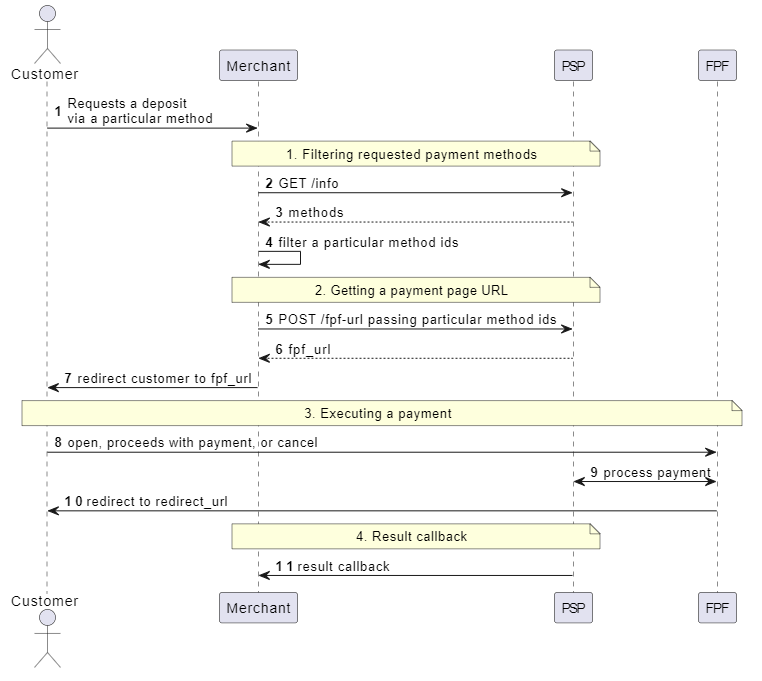
The happy-path flow is as follows:
-
A customer initiates a deposit request using a specific payment method, typically accessible via a designated button or link on the merchant's website or application.
-
The merchant filters and selects the relevant payment method identifiers from the available options. Refer to the Get Available Payment Methods chapter for more details.
-
The merchant retrieves an FPF URL containing the selected payment methods and redirects the customer to this URL. See the Retrieve FPF URL chapter for guidance.
-
The customer completes the necessary fields on the FPF form and clicks the "Pay" button.
-
Upon successful payment, the FPF system redirects the customer back to the merchant's website.
-
The PSP processes the payment and sends an HTTP callback to the merchant with the transaction result. Refer to the Transaction Status Callback chapter for details.
Sequence Diagram for Remit
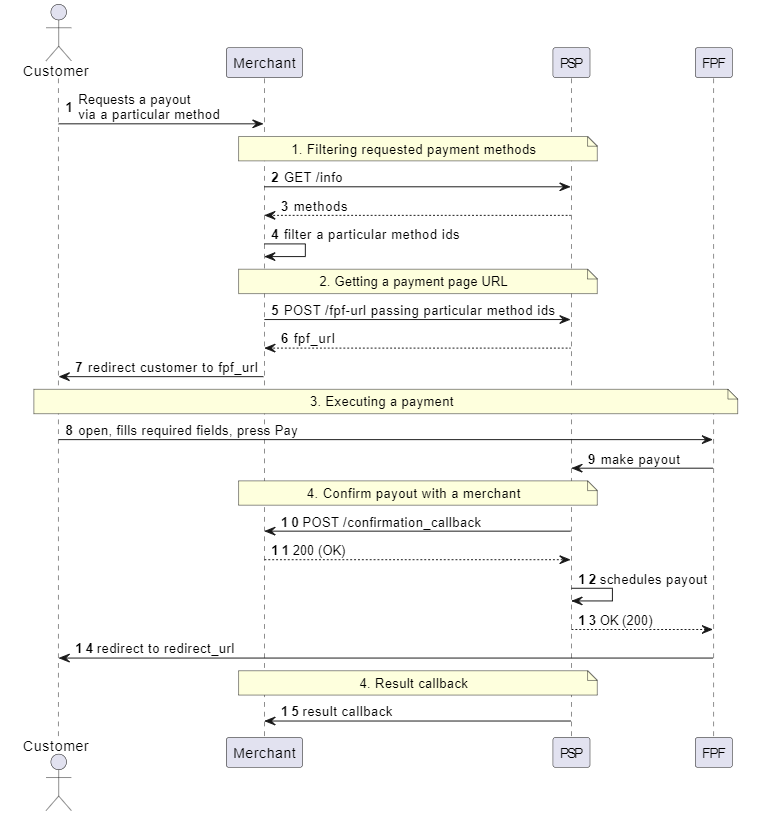
The happy-path flow is as follows:
-
The customer initiates a remit request using a specific payment method, accessible through a designated button or link on the merchant's website or application.
-
The merchant filters and selects the relevant payment method identifiers from the available options. Refer to the Get Available Payment Methods chapter for more details..
-
The merchant retrieves an FPF URL containing the selected payment methods and redirects the customer to this URL. See the Retrieve FPF URL chapter for guidance.
-
The customer completes the necessary fields on the FPF form and clicks the "Pay" button.
-
The FPF sends the remit request to the PSP (Payment Service Provider).
-
The PSP sends a confirmation callback to the merchant's backend to obtain approval for the remit transaction. This step validates the remit amount on the merchant's side before the request is sent to the payment provider. See Confirmation Callback for Remits chapter for details.
-
Upon successful remit registration, the FPF redirects the customer back to the merchant's website.
-
The PSP processes remit and sends an HTTP callback to the merchant with the transaction result. Refer to the Transaction Status Callback chapter for details.
Retrieve FPF URL
To retrieve the payment form, use the request POST /fpf-url.
To ensure you have all the required fields, please refer to the section on Get Available Payment Methods
Request example for deposit with required fields:
curl POST https://fpf-api.proc-gw.com/api/v3/merchantGUID/fpf-url \
--header 'Content-Type: application/json'
--header 'X-App-Token: {APP_KEY}'
--header 'X-Sign-Timestamp: {TIMESTAMP}'
--header 'X-Signature: {SIGNATURE}'
--data-raw '{
 "mode": "deposit"
  }'
Old authentication method [DEPRECATED]
curl POST https://fpf-api.proc-gw.com/api/v3/merchantGUID/fpf-url \
--header 'Content-Type: application/json'
--header 'X-App-Token: {APP_KEY}'
--header 'X-App-Secret: {APP_SECRET}'
--data-raw '{
 "mode": "deposit"
  }'
Request example for deposit with optional fields:
curl POST https://fpf-api.proc-gw.com/api/v3/merchantGUID/fpf-url \
--header 'Content-Type: application/json'
--header 'X-App-Token: {APP_KEY}'
--header 'X-Sign-Timestamp: {TIMESTAMP}'
--header 'X-Signature: {SIGNATURE}'
--data-raw '{
      "mode": "deposit",
      "redirect_url": "https://redirect.com",
      "status_callback_url": "https://status.com",
      "amount": 100.20,
      "merchant_external_id": "random string",
      "merchant_payer_id": "random string",
      "countries": "GBR,DEU",
      "language": "es",
      "payment_methods": [
          "836303b0-8ae2-4ae8-9002-0dae182bf4a5:c3f4cb0a-7e1c-4779-adb7-7326fbef2f7b"
      ]
  }'
Old authentication method [DEPRECATED]
curl POST https://fpf-api.proc-gw.com/api/v3/merchantGUID/fpf-url \
--header 'Content-Type: application/json'
--header 'X-App-Token: {APP_KEY}'
--header 'X-App-Secret: {APP_SECRET}'
--data-raw '{
      "mode": "deposit",
      "redirect_url": "https://redirect.com",
      "status_callback_url": "https://status.com",
      "amount": 100.20,
      "merchant_external_id": "random string",
      "merchant_payer_id": "random string",
      "countries": "GBR,DEU",
      "language": "es",
      "payment_methods": [
          "836303b0-8ae2-4ae8-9002-0dae182bf4a5:c3f4cb0a-7e1c-4779-adb7-7326fbef2f7b"
      ]
  }'
Request example for remit:
curl POST https://fpf-api.proc-gw.com/api/v3/merchantGUID/fpf-url \
--header 'Content-Type: application/json'
--header 'X-App-Token: {APP_KEY}'
--header 'X-Sign-Timestamp: {TIMESTAMP}'
--header 'X-Signature: {SIGNATURE}'
--data-raw '{
    "mode": "remit",
    "redirect_url": "https://redirect.com",
    "callback_confirmation_url": "https://confirmation.com",
    "status_callback_url": "https://status.com",
    "amount": 100,
    "merchant_external_id": "random string"
  }'
Old authentication method [DEPRECATED]
curl POST https://fpf-api.proc-gw.com/api/v3/merchantGUID/fpf-url \
--header 'Content-Type: application/json'
--header 'X-App-Token: {APP_KEY}'
--header 'X-App-Secret: {APP_SECRET}'
--data-raw '{
    "mode": "remit",
    "redirect_url": "https://redirect.com",
    "callback_confirmation_url": "https://confirmation.com",
    "status_callback_url": "https://status.com",
    "amount": 100,
    "merchant_external_id": "random string"
  }'
You need to redirect the customizer to this URL, you can use it in a new tab/window or in an iFrame.
A JSON object containing the following fields:
| Name | Description | Required |
|---|---|---|
mode | Indicates the payment flow, which can be one of the following: deposit or remit. | yes |
redirect_url | The URL to which the customer will be redirected after the payment is completed. The query parameter status will be appended to this URL to indicate the payment result, with possible values of success or fail. It’s important to note that this status reflects the payment processing status, not the final transaction outcome. A status of success means the customer has successfully submitted their payment details, and the payment system is awaiting confirmation that the funds have been received. | yes |
callback_confirmation_url | The URL where confirmation callbacks will be sent. | yes, only if mode=remit |
status_callback_url | The full URL to retrieve the final status of the transaction. | no |
amount | The amount of the payment. If set to 0, the customer will be able to enter any amount within the established limits. | no |
merchant_external_id | The merchant's transaction ID, which can be a string up to 96 characters long. | no |
merchant_payer_id | The payer's identifier in the merchant's internal system, also a string up to 96 characters long. There is no requirement for merchant_external_id to be unique across all of the merchant’s transactions. | no |
countries | A string of country codes in alpha-3 format (e.g., GBR for Great Britain, DEU for Germany). | no |
language | An ISO 639-1 language code to set the localization of the FPF form. Supported languages: en - English, es - Spanish, pt - Portuguese, de - German, fr - French. | no |
payment_methods | An array of payment method IDs used to filter and display only specific payment methods on the payment form. | no |
Successful response example - JSON object containing URL:
{
      "url": https://fpf.proc-gw.com/v3?token=eyJhbGciOiJSUzI1NiIsInR5cCI6IkpXVCJ9.
      eyJwYXlsb2FkIjp7InRyYW5zYWN0aW9uX2d1aWQiOiIxZTJjMzJhNC1iZGJiLTQ0ODItYTAxMC00OWY1ZDc3MzA0OWEiLCJtb2RlIjoiZGVwb3NpdCIsIm1lcmNoYW50X2
      d1aWQiOiI3MWM3YmFlNC1iZDljLTRjZDItOGY5Yi03ZDg5YjQ5MzEyMjEiLCJjYWxsYmFja191cmwiOiJodHRwczovL2Zhc3QtcGF5bWVudC1mbG93LW1lcmNoYW50LmFy
      bWVub3RlY2guZGV2LzcxYzdiYWU0LWJkOWMtNGNkMi04ZjliLTdkODliNDkzMTIyMS90cmFuc2FjdGlvbnMiLCJyZWRpcmVjdF91cmwiOiJodHRwczovL3d3dy55b3V0dW
      JlLmNvbS93YXRjaD92PWRRdzR3OVdnWGNRIiwic3RhdHVzX2NhbGxiYWNrX3VybCI6Imh0dHBzOi8vZmFzdC1wYXltZW50LWZsb3ctbWVyY2hhbnQuYXJtZW5vdGVjaC5k
      ZXYvNzFjN2JhZTQtYmQ5Yy00Y2QyLThmOWItN2Q4OWI0OTMxMjIxL3RyYW5zYWN0aW9ucyIsImFtb3VudCI6MTAwLjJ9LCJleHAiOjE2OTk0Nzk2NDQsImp0aSI6ImMyZD
      JiY2NjLWJjY2MtNDI0OS1hYTNhLTAxZGZiNDY4MDNiNSIsImlhdCI6MTY2NzkyMjA0NH0.
      tt3Psqme0dhs8itLE01-EoRvto-451G4IkDsKMdqiQ67EKkdMgzRM5JCJbJf5DtBHCje6134j56q1EYsXvomESOA0cMhTwPq1PdJyNxS0ZwMVU0SV1Z1YDctnBWQZBHniM
      kp0L43bwMmUrEiSyfdDsXsbkUM6OY8A9ezRrKNu4MWmyhy0ZAA2wvtKoJEgmdX_v6vcz_lGMTiz13qM_obubOp5VeL8S15p5pZrFccy7hwoKK31cOhh-lEqsM9Cwuzy9uG
      OXp6Dlye0EgaAOCm"
      }
Error response:
A JSON object containing the following fields:
| Field Name | Description |
|---|---|
message | Error description |
trace_id | Request trace id |
Get Available Payment Methods
The GET /info request retrieves information about the available payment methods and their details. By making this request, you can obtain all the necessary information about the connected payment methods.
Example request:
curl https://fpf-api.proc-gw.com/api/v3/merchantGUID/info \
--header 'X-App-Token: {APP_KEY}'
--header 'X-Sign-Timestamp: {TIMESTAMP}'
--header 'X-Signature: {SIGNATURE}'
Old authentication method [DEPRECATED]
curl https://fpf-api.proc-gw.com/api/v3/merchantGUID/info \
--header 'X-App-Token: {APP_KEY}'
--header 'X-App-Secret: {APP_SECRET}'
Example response:
  {
    "methods": [
      {
        "guid": "c8e18874-ce90-4a6a-86cd-bcd17f815476:d93717d0-86d0-435a-8191-ea1b43d04a96",
        "fee_fixed": 0,
        "fee_percent": 0,
        "customer_fee_percent": 0,
        "customer_fee_fixed": 0,
        "min_amount": 1.43,
        "max_amount": 570.72,
        "label": "EUR",
        "logo_url": "https://fpf-assets.armenotech.com/mastercard.svg",
        "mobile_logo_url": "https://fpf-assets.armenotech.com/mastercard.svg",
        "payment_group": "BANKCARD",
        "payment_group_name": "Bank card",
        "digits_delivery": 2,
        "digits_asset": 2,
        "rate": 1.4,
        "delivery_currency": "iso4217:EUR",
        "method_currency": "BRL",
        "method_symbol": "R$",
        "country_code": "WWC",
        "direction": "in"
        "deposit": {
          "guid": "c8e18874-ce90-4a6a-86cd-bcd17f815476:d93717d0-86d0-435a-8191-ea1b43d04a96",
          "fields": {
            "external_id": {
              "optional": true,
              "description": "Merchant’s external ID",
              "hidden": true
            },
            "redirect_url": {
              "optional": true,
              "description": "url where a customer will be redirected with parameters status=[successful|failed|canceled], transaction_id, method, amount, currency",
              "hidden": true,
            },
            "status_callback_url": {
              "optional": true,
              "description": "Callback URL",
              "hidden": true
            }
          },
        }
      }
     ]
 }
The response is an array of payment methods available to you. Each method includes detailed information about the payment currency, fees, limits, etc. Most of the parameters are utilized by the FPF Frontend.
| Name | Description |
|---|---|
methods[?].guid | Unique identifier (GUID) for the payment method. |
methods[?].fee_fixed | Fixed fee associated with the payment method, as per the contract with the merchant. |
methods[?].fee_percent | Percentage fee applied to the transaction, in accordance with the merchant's contract. |
methods[?].customer_fee_percent | Percentage fee to be paid by the end user, defined in the merchant's contract. |
methods[?].customer_fee_fixed | Fixed fee that the end user must pay, according to the contract with the merchant. |
methods[?].min_amount | The minimum allowable amount for a single transaction using this payment method. |
methods[?].max_amount | The maximum allowable amount for a single transaction using this payment method. |
methods[?].label | User-friendly label for the payment method. |
methods[?].logo_url | URL for the logo of the payment method. |
methods[?].mobile_logo_url | URL for the logo of the payment method, optimized for mobile display |
methods[?].payment_group | Additional categorization information for the payment method. |
methods[?].payment_group_name | Name of the payment group associated with this method. |
methods[?].payment_category | The category classification of the payment method (e.g., credit card, e-wallet, etc.). |
methods[?].digits_delivery | Number of decimal places allowed for the delivery currency. |
methods[?]digits_asset | Number of decimal places allowed for the asset. |
methods[?]rate | Conversion rate from the asset to the delivery currency. |
methods[?]delivery_currency | Currency code for the delivery currency. |
methods[?].method_currency | The currency in which all amounts related to this payment method are calculated. This is represented as a three-letter currency code (e.g., USD, IDR, MYR). |
methods[?].method_symbol | Symbol of the currency used with this payment method (may be omitted). |
methods[?].country_code | The country code where the payment method is applicable. |
methods[?].direction | Indicates the transaction type: in: returned for deposit methods. out: returned for remit methods. This field determines whether the method fields specification is found under the deposit or remit attribute. |
methods[?].deposit/remit | The object of type PaymentMethodFields containing the fields specification. |
PaymentMethodFields.guid | Unique identifier (GUID) for the payment method fields. |
PaymentMethodField.fields | An associated array with a field name as a key and a field spec as value. key type of String and specifies the field name. value type of PaymentMethodField. |
PaymentMethodField.optional | Boolean value indicating whether this field is optional (true means the parameter is not required). |
PaymentMethodField.description | Description of the field and its purpose. |
PaymentMethodField.hidden | Instruction for the frontend application to hide this field from the user interface. |
Prefilled fields
Prefilled fields allow you to provide values that will be displayed on the FPF form, so clients do not need to manually fill in payment details. For example, if a payment method requires First Name, Last Name, and Email, these can be prefilled.
While prefilled fields are optional, we strongly recommend including them as they are important for improving conversion rates.
Merchant can add the following fields to POST /fpf-url request in order to provide values:
"fields": {
"from_first_name": "Yervand Kochar",
"from_last_name": "Yerevan",
"from_email": "anton.aleev@armenotech.com"}
In this case, the FPF form will not display the fields, and the client won't need to manually provide details. The field names can be found in the GET /info response.
However, there's an exception: if the provided value is incorrect (i.e., fails validation), the FPF form will display the field, allowing the client to correct the issue.
Confirmation Callback for Remits
Remit transactions initiated via the FPF payment form are not executed immediately. A confirmation step is required to ensure the merchant’s backend approves the transaction before it proceeds.
Confirmation Workflow
- Transaction Initiation: The customer starts a remit transaction using the FPF form.
- Callback Dispatch: Before executing the transaction, the PSP sends a callback to the
callback_confirmation_urlprovided in the initial POST /fpf-url request. - Merchant Confirmation: The merchant’s system receives the callback and must decide whether to confirm or reject the transaction. It should respond with:
- 200 OK or 201 Created to confirm the transaction.
- Any other HTTP status (e.g. 400, 500) to reject the transaction. In this case, an optional error message can be included in the response body.
Callback Request Payload
The callback is a JSON object containing:
| Field | Description |
|---|---|
transaction_id | The unique transaction identifier assigned by the PSP. |
merchant_external_id | (Optional) The merchant's transaction ID, included if provided during the POST /fpf-url request. |
amount | The amount (in float) to be remitted. |
Get Status Transaction
You can request the transaction status via the API using the transaction ID.
Example request:
curl https://fpf-api.proc-gw.com/api/v3/merchantGUID/TRANSACTION_ID \
        --header 'X-App-Token: APP_KEY'
        --header 'X-Sign-Timestamp: {TIMESTAMP}'
        --header 'X-Signature: {SIGNATURE}'
        --header 'Content-Type: application/json'
Old authentication method [DEPRECATED]
curl https://fpf-api.proc-gw.com/api/v3/merchantGUID/TRANSACTION_ID \
        --header 'X-App-Token: APP_KEY'
        --header 'X-App-Secret: APP_SECRET'
        --header 'Content-Type: application/json'
Example response:
{
    "id": "f2a86886-675c-4f55-a247-757a4ef55e53",
    "external_id": "test 2434",
    "status": "completed",
    "refunded": true,
    "amount": 3,
    "amount_in": 3,
    "amount_out": 3,
    "amount_fee": 0,
    "amount_body": 3,
    "customer_fee": 0,
    "merchant_fee": 0,
    "external_message": "APPROVED",
    "fiscal_status": "done",
    "refunds": {
        "amount_refunded": "3",
        "amount_fee": "0",
        "payments": [
            {
                "id": "ee9de236-6f6a-48b7-b1ad-bb496e6ba5dc",
                "external_id": "{YOUR_REFUND_EXTERNAL_ID}",
                "status": "completed",
                "fiscal_status": "refunded",
                "amount": 3,
                "rrn": "688447"
            }
        ]
    }
}
A JSON object containing the following fields:
| Name | Type | Optional | Description |
|---|---|---|---|
id | UUID | true | Unique identifier for the transaction. |
merchant_external_id | string | true | External transaction ID provided by the merchant. |
status | string enum | true | Current status of the transaction. Possible values include: |
pending_sender: awaiting payment from the customer. | |||
pending_external: The customer has made a payment, and the transaction is under AML-check (Anti-Money Laundering). Alternatively, the merchant has initiated a refund, and the refund is pending completion. | |||
completed: The transaction has been successfully completed. | |||
error: There was an error with the transaction. | |||
pending_transaction_info_update: An error occurred during transaction initiation. This status should be interpreted as an error. | |||
fiscal_status | Indicates the current status of the operation. Possible values include: | yes | |
pending: Operation is in progress. | |||
canceled: Operation was canceled. | |||
expired: Payment was not completed in time, and the operation expired. | |||
done: Operation completed. | |||
failed: (For Payouts only) Unable to complete the operation due to lack of funds or error. | |||
amount | float | false | The amount specified in the original request (float). |
refunded | bool | true | Indicates whether the transaction has been refunded (true or false). |
amount_in | float | true | Amount received from the sender. For deposit transactions, this reflects the amount the customer paid in the contract currency. For remit transactions, it indicates the amount charged by the merchant to execute the transaction. |
amount_out | float | true | Amount credited to the receiver. For deposit transactions, this reflects the amount credited to the merchant. For remit transactions, it shows the amount credited to the customer. |
amount_fee | float | true | The fee calculated according to the contract. |
customer_fee | float | true | The calculated fee that the customer is required to pay. |
merchant_fee | float | true | The calculated fee that is paid or earned by the merchant. A positive value indicates a fee to be paid by the merchant, while a negative value signifies a benefit to the merchant. |
refunds.amount_refunded | float | true | The total amount to be refunded. |
refunds.amount_fee | float | true | The fee associated with the refund, according to the contract. |
refunds.payments[?].id | UUID | true | Unique identifier (UUID) for the refund transaction. |
refunds.payments[?].external_id | string | true | External ID for the refund, as provided by the merchant during the refund creation request. |
refunds.payments[?].status | string enum | true | Status of the refund, which can be one of the following: |
pending: A request has been sent to the acquiring bank to initiate the refund. The refund status will be updated based on feedback from the bank, which can be monitored in the merchant's back office. | |||
completed: The transaction has been fully refunded. | |||
rejected: The refund request was rejected | |||
refunds.payments[?].fiscal_status | The current status of the refund operation. May be one of the following: | yes | |
pending: Operation is in progress. | |||
failed: Unable to complete the operation due to lack of funds or error. | |||
refunded: Refund operation completed. | |||
refunds.payments[?].amount | float | true | The refund amount including any applicable fees based on the contract. |
refunds.payments[?].rrn | string | true | Retrieval Reference Number (RRN), an identifier for the refund provided by the payment provider. |
Transaction Status Callback
Before going live, make sure your operations team gets access to the external reason that we send you in the callback in the external_message field. This is necessary to understand the reasons for rejected transactions.
The transaction status callback notifies merchants about the transaction status after a payment operation is completed.
The PSP sends a request to the endpoint specified as status_callback_url in the POST /fpf-url request. The merchant's system should respond with a 200 OK status.
Transaction status defined by 2 elements sep31_status and refunded:
Successful transaction has sep31_status = completed and refunded = false
Refunded transaction has sep31_status = completed and refunded = true
Failed transaction has sep31_status = error
Callback Security and Request Verification
To ensure that callback requests originate exclusively from our platform and have not been tampered with, webhook requests are signed using the HMAC-SHA256 algorithm when a secret key is configured.
⚠️ Deprecation Notice: The legacy fields
md5_sigandmd5_body_sigpassed within the JSON payload are now deprecated. It is highly recommended to migrate to the newX-Signatureheader validation described below.
Overview
- Algorithm: HMAC-SHA256
- Signature Location: Sent as a custom HTTP header named
X-Signature. - Payload: The signature is generated over the raw bytes of the entire incoming JSON request body.
- Secret Key: Use your unique Callback Secret Key obtained from the Integration Credentials section. If no secret key is configured for the your account, the
X-Signatureheader will not be sent.
Signature Generation Formula
X-Signature =hex(HMAC-SHA256(secret_key,request_body))
Where:
request_body— The raw, unparsed bytes of the JSON body.secret_key— Your unique secret key.
Verification Code Examples
To prevent timing attacks, always use constant-time string comparison functions when validating the signature in your application.
Go
import (
    "crypto/hmac"
    "crypto/sha256"
    "encoding/hex"
)

// Verify checks if the incoming X-Signature header matches the computed HMAC
func Verify(body []byte, secret, headerSig string) bool {
    mac := hmac.New(sha256.New, []byte(secret))
    mac.Write(body)
    expected := hex.EncodeToString(mac.Sum(nil))

    return hmac.Equal([]byte(expected), []byte(headerSig))
}
Deposit Transaction Status Callback
Request example:
  {
    "amount_body": 500,
    "amount_in": 500,
    "amount_out": 475.5,
    "asset": "stellar:APSUSDM:GB7OUO5NY5WQKXJJ7PFFZEJOKN4BA7IOEN3Z6SWAY26LGTREJJYZH2ZT",
    "body_currency": "iso4217:USD",
    "deposit_details": {
      "bank_card_mask": "471227******0407",
      "from_first_name": "Saurabh",
      "from_last_name": "Ghodmare",
      "payment_group": "bank_card",
      "payment_method": "r:fab9dcd0-bb93-4f09-b65f-2edb69a3a213"
    },
    "md5_body_sig": "30e93a687812eb759f867d55d77a064d",
    "md5_sig": "a99ec94e699e361fdb33aa50140e474b",
    "merchant_external_id": "202678449",
    "refunded": true,
    "refunds": {
      "amount_fee": "2",
      "amount_refunded": "8",
      "amount_refunded_to_customer": "6",
      "payments": [
        {
          "amount": 502,
          "fee": 2,
          "amount_body": 3,
          "id": "2a8bf37c-3d3d-4280-9e42-680c8ce6150a",
          "external_id": "{YOUR_REFUND_EXTERNAL_ID}",
          "rrn": "435307914502",
          "arn": "123456789123",
          "status": "completed",
          "fiscal_status": "refunded"
        }
      ]
    },
    "sep31_status": "completed",
    "seq": 1724999384570,
    "status": "refunded",
    "fiscal_status": "done",
    "transaction_id": "b829f009-afe0-45c2-9996-8941f80bcb0e"
  }
Request body contains the following elements:
| Field | Description | Required |
|---|---|---|
transaction_id | Unique identifier for the PSP transaction. | yes |
body_currency | Processing currency applicable between the merchant and PSP. | yes |
status | Current status of the transaction. Possible values include: | yes |
canceled: Transaction canceled by the payment provider. | ||
expired: Payment not completed in time, transaction expired | ||
payed: Payment completed by the customer, but the funds haven't yet settled to the PSP account | ||
done: Transaction successfully completed. | ||
refund_pending: Refund request sent to the acquiring bank, awaiting feedback on refund status. | ||
refunded: Transaction fully refunded. | ||
refund_rejected: Refund rejected. | ||
fiscal_status | Indicates the current status of the deposit operation. Possible values include: | yes |
pending: Operation is in progress. | ||
canceled: Deposit was canceled. | ||
expired: - Payment was not completed in time, and the operation expired. | ||
done: Operation completed. | ||
md5_sig | MD5 signature to validate callback request. md5(transaction_id+status+secret_key) Deprecated! Please use X-Signature header instead | yes |
seq | Timestamp in UnixMilli format indicating when the callback was created. | yes |
sep31_status | Status of the Sep31 transaction. Possible values: - completed - error | yes |
refunded | Indicates whether the transaction has been refunded: true/false | yes |
refunds.amount_fee | Fee associated with the refund according to the contract. | yes |
amount_refunded | Amount to be refunded. | yes |
amount_refunded_to_customer | The exact sum that will be send to customer | yes |
refunds.payments[?].amount | Total amount to refund, including any applicable fees as per the contract. | yes |
refunds.payments[?].amount_body | Amount that is due to the end customer | yes |
refunds.payments[?].fee | Fee associated with the refund according to the contract. | yes |
refunds.payments[?].id | Unique identifier (UUID) for the refund transaction. | yes |
refunds.payments[?].external_id | External refund ID provided by the merchant during the refund request. | no |
refunds.payments[?].rrn | Retrieval Reference Number, which is the refund identifier provided by the payment provider. | yes |
refunds.payments[?].arn | Acquirer Reference Number, which is the refund identifier provided by the payment provider. | yes |
refunds.payments[?].status | Refund status, which may be one of the following: | yes |
pending: Refund request sent, awaiting feedback from the acquiring bank. | ||
completed: Transaction fully refunded | ||
rejected: Refund rejected. | ||
refunds.payments[?].fiscal_status | The current status of the refund operation. May be one of the following: | yes |
pending: Operation is in progress. | ||
failed: Unable to complete the operation due to lack of funds or error. | ||
refunded: Refund operation completed. | ||
md5_body_sig | MD5 signature to validate callback request. md5(transaction_id+sep31_status+refunded+secret_key) Deprecated! Please use X-Signature header instead | yes |
deposit_details | Detailed information about the deposit transaction. Specific payload depends on the payment method Examples are: | no |
{ "payment_group": "bank_card", "bank_card_mask": "1000****0001", "from_first_name": "Saurabh", "from_last_name": "Ghodmare", "payment_method": "r:fab9dcd0-bb93-4f09-b65f-2edb69a3a213"} | ||
{ "payment_group": "bank_account"} | ||
{ "payment_group": "ewallet","ewallet_account_id": "475846215"} | ||
{ "binance_open_user_id": "8f825dd63a8dee291766c81cc4df5c62", "ewallet_account_id": "578144430", "payment_group": "ewallet" "payment_method": "a44ba598-bec9-439e-baef-4dc8b0ae2e4b:80210375-51a1-4ac7-8d83-d3b31857a818", | ||
payment_group field may be one of the following values: bank_card,cash_collection, crypto, ewallet,bank_account | ||
merchant_external_id | External ID provided by the merchant in the original request. | no |
amount_in | Amount the customer has paid. | yes |
amount_out | Amount settled to the merchant’s account by the PSP. | yes |
external_status | Status provided by the local payment provider | no |
external_message | Error details provided by the local payment provider. | no |
Remit Transaction Status Callback
Request example:
{
    "amount_body": 100.2,
    "amount_in": 100.2,
    "amount_out": 94.68,
    "asset": "stellar:PURPLE:GBT4VVTDPCNA45MNWX5G6LUTLIEENSTUHDVXO2AQHAZ24KUZUPLPGJZH",
    "body_currency": "iso4217:EUR",
    "payout_details": {
      "bank_card_mask": "401200******3010",
      "payment_group": "bank_card",
      "payment_method": "a7b5ac9a-dac2-46c7-919c-9e478e3daf62:1c032242-bc6f-4b0e-b8e9-7d3fca7a668f",
      "rrn": "435307914502"
    },
    "external_message": "The transaction was completed successfully",
    "md5_body_sig": "cee95760668eb0963ab1dc5304fb6046",
    "md5_sig": "6fc67e043cb47b3cd7066450959117fe",
    "merchant_external_id": "123321",
    "refunded": false,
    "sep31_status": "completed",
    "seq": 1724822157474,
    "status": "done",
    "fiscal_status": "done",
    "transaction_id": "07f62464-fcf1-47b3-a804-3af29b884134"
  }
Request body contains the following elements:
| Field | Description | Required |
|---|---|---|
transaction_id | Unique identifier for the PSP transaction. | yes |
body_currency | Processing currency applicable between the merchant and PSP. | yes |
status | Current status of the transaction. Possible values include: | yes |
expired: The payment was not completed in time, and the transaction expired. | ||
done: Transaction successfully completed. | ||
refunded: Remit failed, and funds were returned to the merchant. | ||
canceled: Transaction canceled by the payment provider. | ||
fiscal_status | The current status of the operation, which may be one of the following: | yes |
pending: Operation is in progress. | ||
canceled: Remit was canceled. | ||
expired: Payment was not completed in time, and the operation expired. | ||
failed: Unable to complete the operation due to lack of funds or error. | ||
done: Operation completed. | ||
md5_sig | MD5 signature to validate callback request. md5(transaction_id+status+secret_key) Deprecated! Please use X-Signature header instead | yes |
seq | Timestamp in UnixMilli format indicating when the callback was created. | yes |
sep31_status | Status of the Sep31 transaction. Possible values: - completed - error | yes |
refunded | Indicates whether the transaction has been refunded: true/false. | yes |
md5_body_sig | MD5 signature to validate callback request. md5(transaction_id+sep31_status+refunded+secret_key) Deprecated! Please use X-Signature header instead | yes |
payout_details | Detailed information about the remit transaction. Specific payload depends on the payment method. Example: | no |
{ "payout_details": { "payment_group": "cash_collection", "ready_to_receive": true, "collection_pin": "123987"}} | ||
payment_group field may be one of the following values: bank_card,cash_collection, crypto, ewallet,bank_account | ||
merchant_external_id | External ID provided by the merchant in the original request. | no |
amount_in | Amount the customer has paid. | yes |
amount_out | Amount settled to the merchant’s account by the PSP. | yes |
external_status | Status provided by the local payment provider. | no |
external_message | Error details provided by the local payment provider. | no |
How to make a Refund
If your deposit transaction is in the completed status, then you can initiate a refund for it.
Depending on the payment method and issuer the refund process may take:
-
1 to 2 hours
-
1 to 15 bank days
-
up to 8-10 weeks in rare cases.
Request example:
curl POST https://fpf-api.proc-gw.com/api/v3/merchantGUID/TRANSACTION_ID/refund \
        --header 'X-App-Token: APP_KEY'
        --header 'X-Sign-Timestamp: {TIMESTAMP}'
        --header 'X-Signature: {SIGNATURE}'
        --header 'Content-Type: application/json'
        --data-raw '{
                      "reason":"{DESCRIPTION}",
                      "external_id": "{YOUR_REFUND_EXTERNAL_ID}"
                    }
Old authentication method [DEPRECATED]
curl POST https://fpf-api.proc-gw.com/api/v3/merchantGUID/TRANSACTION_ID/refund \
        --header 'X-App-Token: APP_KEY'
        --header 'X-App-Secret: APP_SECRET'
        --header 'Content-Type: application/json'
        --data-raw '{
                      "reason":"{DESCRIPTION}",
                      "external_id": "{YOUR_REFUND_EXTERNAL_ID}"
                    }
Request body contains the following elements:
| Field | Description | Required |
|---|---|---|
reason | Reason of the refund. | no |
external_id | Your refund external ID. The external_id field must be unique. If a refund is registered with a duplicated external_id, an error will be returned. | no |
Response body contains the following elements:
| Field | Description | Required |
|---|---|---|
id | Unique identifier for a refund. | yes |
merchant_external_refund_id | Your refund external ID. | no |
Example Response:
- Status code 200, example body:
{
  "id":"refund_id",
  "merchant_external_refund_id":"{YOUR_REFUND_EXTERNAL_ID}"
}
- Status code 400/500, example body:
{
  "error":"bad_request, refund is not supported for this transaction"
}
- When
external_idis duplicated, status code 400, example body:
{
  "message": "bad_request, psp client refund deposit: {\"error\":\"saveTxWithRefund(): refundSvc.Set(): duplicate external_id\"}",
  "trace_id": "69f7bd2eebcf2834e8404ba6374902d0"
}
Partial Refunds
You can make partial refunds of deposits. In order to initiate partial refund an field "amount" should be added to refund request. It is possible to make several partial refunds for one initial transaction.
Request example:
curl POST https://fpf-api.proc-gw.com/api/v3/merchantGUID/TRANSACTION_ID/refund \
        --header 'X-App-Token: APP_KEY'
        --header 'X-Sign-Timestamp: {TIMESTAMP}'
        --header 'X-Signature: {SIGNATURE}'
        --header 'Content-Type: application/json'
        --data-raw '{
                      "reason":"{DESCRIPTION}",
                      "external_id": "{YOUR_REFUND_EXTERNAL_ID}",
                      "amount": 100.00
                    }
Old authentication method [DEPRECATED]
curl POST https://fpf-api.proc-gw.com/api/v3/merchantGUID/TRANSACTION_ID/refund \
        --header 'X-App-Token: APP_KEY'
        --header 'X-App-Secret: APP_SECRET'
        --header 'Content-Type: application/json'
        --data-raw '{
                      "reason":"{DESCRIPTION}",
                      "external_id": "{YOUR_REFUND_EXTERNAL_ID}",
                      "amount": 100.00
                    }
Request body contains the following elements:
| Field | Description | Required |
|---|---|---|
amount | Amount of the partial refund. | yes |
reason | Reason of the refund. | no |
external_id | Your refund external ID. The external_id field must be unique. If a refund is registered with a duplicated external_id, an error will be returned. | no |
Response body contains the following elements:
| Field | Description | Required |
|---|---|---|
id | Unique identifier for a partial refund. | yes |
merchant_external_refund_id | Your refund external ID. | no |
Example Response:
- Status code 200, example body:
{
  "id":"refund_id",
  "merchant_external_refund_id":"{YOUR_REFUND_EXTERNAL_ID}"
}
- Status code 400/500, example body:
{
  "error":"bad_request, refund is not supported for this transaction"
}
- When
external_idis duplicated, status code 400, example body:
{
  "message": "bad_request, psp client refund deposit: {\"error\":\"saveTxWithRefund(): refundSvc.Set(): duplicate external_id\"}",
  "trace_id": "69f7bd2eebcf2834e8404ba6374902d0"
}
Get Merchant Account Balance via API
We will give you APP_TOKEN and APP_SECRET separately.
Example request:
curl https://merchant-api.aps.money/api/v2/merchantGUID/balance\
        --header 'X-App-Token: APP_KEY'
        --header 'X-Sign-Timestamp: {TIMESTAMP}'
        --header 'X-Signature: {SIGNATURE}'
Old authentication method [DEPRECATED]
curl https://merchant-api.aps.money/api/v2/merchantGUID/balance\
        --header 'X-App-Token: APP_KEY'
        --header 'X-App-Secret: APP_SECRET'
Example response:
{
   "data": [
       {
           "balance": 306.07,
           "asset": "USD",
           "asset_key": "ATUSD"
       },
       {
           "balance": 25,
           "asset": "EUR",
           "asset_key": "PURPLE"
       }
   ],
   "total": 332.57,
   "total_currency": "USD"
}
Get Transaction History (CSV)
Retrieve your transaction records in CSV format. Use the query parameters below to filter and customize your results.
Example Request:
curl -X POST https://fpf-api.proc-gw.com/api/v3/merchantGUID/reports/operations/csv-stream\
        --header 'X-App-Token: APP_KEY'
        --header 'X-Sign-Timestamp: {TIMESTAMP}'
        --header 'X-Signature: {SIGNATURE}'
        --header 'Content-Type: application/json'
        -d '{
            "created_at": {
                "from": "2024-01-01T00:00:00Z",
                "to": "2024-12-31T23:59:59Z"
            }
        }'
Old authentication method [DEPRECATED]
curl -X POST https://merchant-api.aps.money/api/v2/merchantGUID/reports/operations/csv-stream\
        --header 'X-App-Token: APP_KEY' \
        --header 'X-App-Secret: APP_SECRET' \
        --header 'Content-Type: application/json' \
        -d '{
            "created_at": {
                "from": "2024-01-01T00:00:00Z",
                "to": "2024-12-31T23:59:59Z"
            }
        }'
This endpoint accepts the following query parameters:
| Parameter | Description | Example | Required |
|---|---|---|---|
created_at | Start and end date in RFC-3339 format (e.g., 2023-10-02T00:00:00Z). Filters operations by creation date. | "created_at": {"from": "2024-01-01T00:00:00Z", "to": "2024-12-31T23:59:59Z"} | yes |
updated_at | End date in RFC-3339 format (e.g., 2023-10-02T00:00:00Z). Filters operations by last updated date. | "updated_at": {"from": "2024-01-01T00:00:00Z", "to": "2024-12-31T23:59:59Z"} | no |
pagination | Controls the ordering of results before CSV generation. sort_by — Column to order by: created_at or updated_at ordering. Sort direction: ASC or DESC | "pagination": {"sort_by": "created_at", "ordering": "desc"} | no |
types | Operation type to filter by. Returns all types if not specified. Available values: deposit, remit, refund, chargeback | "types": ["deposit", "remit"] | no |
statuses | Filter by operation status. Available values: canceled, expired, failed, payed, pending, done, refunded, chargeback. Statuses vary by operation type: Deposits: pending (in progress), canceled, expired (payment not completed in time), done (completed). Remits: pending (in progress), canceled, expired (payment not completed in time), failed (insufficient funds or error), done (completed). Refunds: pending (in progress), failed (insufficient funds or error), refunded (completed) Chargebacks: chargeback (payment disputed and refunded to customer) | "statuses": ["pending" ] | no |
methods | Filter by payment method category. Available values: BANKCARD, CASH, CRYPTO, EWALLET, WIRETRANSFER, BINANCE | "methods": ["BANKCARD", "WIRETRANSFER"] | no |
operation_ids | Unique identifier for a single operation within a transaction (e.g., deposit, refund, chargeback, or remit). While a Transaction ID groups all related operations, the Operation ID refers to one specific action. Filtering by this parameter returns only that individual operation. | "operation_ids": ["550e8400-e29b-41d4-a716-446655440000", "550e8400-e29b-41d4-a716-446655440001"] | no |
unified_transaction_ids | Unique identifier for the entire payment lifecycle. Links all related operations—deposits, refunds, chargebacks—under a single transaction. Use this to retrieve the full set of related operations in one report. | "unified_transaction_ids": ["550e8400-e29b-41d4-a716-446655440002", "550e8400-e29b-41d4-a716-446655440003"] | no |
external_ids | Merchant-assigned reference ID for tracking purposes. Using this attribute in a report generation request results in filtering by the merchant_external_id attribute from the transaction initialization request. | "external_ids": ["ext-12345", "ext-67890"] | no |
body_currencies | Currencies in which the merchant initiated transactions in PSP. | "body_currencies": [ "USD", "EUR"] | no |
Example response:
TRANSACTION ID,UNIFIED TRANSACTION ID,RRN,CREATED,UPDATED,EXTERNAL ID,PAYER ID,STATUS,METHOD,TYPE,COUNTRY,BODY AMOUNT,USER FEE,MERCHANT FEE,BODY CURRENCY,CONVERSION RATE,CHARGED AMOUNT,CHARGED CURRENCY,CREDITED AMOUNT,CREDITED CURRENCY,UNIFIED ERROR MESSAGE,CARD HOLDER,CARD MASKED NUMBER
b22843e0-4c60-4c56-8ea8-357a2ed65dee,b22843e0-4c60-4c56-8ea8-357a2ed65dee,,04-04-2025 11:54:58.19752 +0000 UTC,04-04-2025 11:55:31.510134 +0000 UTC,autotestExternalID1743767697350,,canceled,BANKCARD,remit,POLAND,30.00,0.00,0.00,iso4217:USD,1.00,0.00,iso4217:USD,0.00,iso4217:USD,,Automation Automation,4111111111111111
06d2cee4-225e-4edb-af41-e1f85b7f0d04,06d2cee4-225e-4edb-af41-e1f85b7f0d04,,04-04-2025 11:53:28.105722 +0000 UTC,04-04-2025 12:24:50.184459 +0000 UTC,autotestExternalID1743767607103,,expired,BANKCARD,deposit,,30.00,1.00,0.15,iso4217:USD,1.00,0.00,iso4217:USD,0.00,iso4217:USD,,Automation Automation,
e96bf6bf-f23d-48a1-a550-a9860e12ed0a,e96bf6bf-f23d-48a1-a550-a9860e12ed0a,,04-04-2025 11:51:46.282755 +0000 UTC,04-04-2025 12:23:15.59409 +0000 UTC,autotestExternalID1743767504631,,expired,BANKCARD,deposit,,30.00,1.00,0.15,iso4217:USD,1.00,0.00,iso4217:USD,0.00,iso4217:USD,,Automation Automation,
2c233f01-5261-44f9-ab78-cf90f7adf7f6,2c233f01-5261-44f9-ab78-cf90f7adf7f6,,04-04-2025 11:17:00.686727 +0000 UTC,04-04-2025 11:17:34.291443 +0000 UTC,autotestExternalID1743765419873,,canceled,BANKCARD,remit,POLAND,30.00,0.00,0.00,iso4217:USD,1.00,0.00,iso4217:USD,0.00,iso4217:USD,,Automation Automation,4111111111111111
a68b6af9-2c28-4954-8bae-80d505befe91,a68b6af9-2c28-4954-8bae-80d505befe91,,04-04-2025 11:15:25.898994 +0000 UTC,04-04-2025 11:46:49.405302 +0000 UTC,autotestExternalID1743765324863,,expired,BANKCARD,deposit,,30.00,1.00,0.15,iso4217:USD,1.00,0.00,iso4217:USD,0.00,iso4217:USD,,Automation Automation,
31cd8102-ec24-4b72-8f76-f63e9031b2d6,31cd8102-ec24-4b72-8f76-f63e9031b2d6,,04-04-2025 11:13:24.604913 +0000 UTC,04-04-2025 11:45:29.521178 +0000 UTC,autotestExternalID1743765203244,,expired,BANKCARD,deposit,,30.00,1.00,0.15,iso4217:USD,1.00,0.00,iso4217:USD,0.00,iso4217:USD,,Automation Automation,
CSV file contains the following transaction details:
| Column | Description |
|---|---|
| CREATED | Operation timestamp recorded by APS. Timezone: UTC. |
| UPDATED | Timestamp of the last update to the operation, recorded by APS. Timezone: UTC. |
| TRANSACTION ID | Unique identifier for the entire payment lifecycle. Links all related operations—deposits, refunds, chargebacks—under a single transaction. Use this to retrieve the full set of related operations in one query. |
| UNIFIED TRANSACTION ID | Unique identifier for the entire payment lifecycle. Links all related operations—deposits, refunds, chargebacks—under a single transaction. Use this to retrieve the full set of related operations in one query. |
| OPERATION ID | Unique identifier for a single operation within a transaction (e.g., deposit, refund, chargeback, or remit). Unlike the Transaction ID, which groups all related operations, the Operation ID refers to one specific action. Returns only that individual operation. |
| EXTERNAL ID | Merchant-assigned reference ID for tracking purposes. |
| PAYER ID | Merchant-provided unique identifier for the customer. |
| METHOD | Payment method selected for the operation. May be empty if the operation was abandoned before a payment method was selected. |
| CARD HOLDER | Name provided during payment, either submitted by the payer or passed to APS by the merchant. May not match the name on the bank card. |
| CARD MASKED NUMBER | Masked bank card number used for payment processing. |
| COUNTRY | Bank card issuing country. Applies to card transactions only. |
| TYPE | Operation type: Deposit, Remit, Refund, or Chargeback. |
| STATUS | Current status of the operation. Values vary by operation type: Deposits: pending (in progress), canceled, expired (payment not completed in time), done (completed). Remits: pending (in progress), canceled, expired (payment not completed in time), failed (insufficient funds or error), done (completed). Refunds: pending (in progress), failed (insufficient funds or error), refunded (completed). Chargebacks: chargeback (payment disputed and refunded to customer). |
| RRN | Reference Retrieval Number (RRN). Unique identifier for tracking an operation across payment systems. Applies to deposit and refund operations only. |
| BODY AMOUNT | Amount before applying any fees |
| BODY CURRENCY | Currency of the body amount |
| CONTRACT FEE | The fee rate agreed upon with the merchant |
| CONTRACT FEE CURRENCY | Currency of the contract fee |
| CUSTOMER FEE | The fee the customer sees and pays during the transaction |
| CUSTOMER FEE CURRENCY | Currency of the customer fee |
| CHARGED AMOUNT | Amount paid by the customer in local currency (deposits) or by the merchant in assets (remits). |
| CHARGED CURRENCY | Currency of the charged amount |
| MERCHANT FEE | Amount paid by the merchant to cover transaction costs on behalf of the customer. Value is zero if the customer pays, or negative if the merchant covers part or all of the costs. |
| MERCHANT FEE CURRENCY | Currency of the merchant fee |
| CREDITED AMOUNT | Assets credited to the merchant (deposits) or local currency credited to the customer (remits). |
| CREDITED CURRENCY | Currency of the credited amount |
| CONVERSION RATE | The exchange rate applied to the customer |
| UNIFIED ERROR MESSAGE | Error message that was provided by payment service provider (VISA, MasterCard, etc). |